Python Tools for Managing Virtual Environments
· Updated
Categories: Python

A Python virtual environment is “a self-contained directory tree that contains a Python installation for a particular version of Python, plus a number of additional packages” (quote from the official docs).
Cue the requisite xkcd comic:
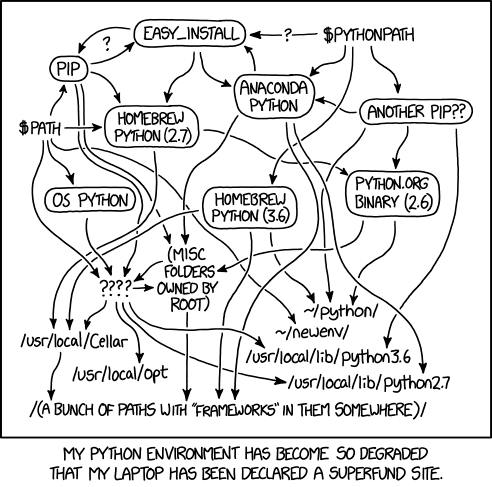
The moral of the story: be intentional and organized with Python virtual environments and try not to pollute your system Python environment, or it gets messy.
Due to the potential messiness, numerous tools have arisen to help with managing these virtual environments. This article describes and demonstrates a few.
- How to use this guide
- venv
- virtualenv
- Poetry
- Pipenv
- Pyflow
- pyenv-virtualenv
- Conda
- Hatch
- Which tool to choose?
- Further reading
How to use this guide
This guide engages a variety of questions and audiences, reflecting the voices that exist in my own head.
- How do virtual environments work, practically? See the
venvsummary - How can my tool of choice be used to manage virtual environments? After reading about
venv, find your tool in the table of contents for a brief intro. (Or suggest a tool I missed in the comments!) - What tools are available for managing virtual environments? Read the whole article! Scan the table of contents first. Give criticism and suggestions in the comments.
- Which tools is right for me? Probably virtualenv, Poetry, or possibly Conda. I engage such discernment at the end.
Use venv, included in Python
Side note: the
virtualenvcommand is a “superset” of the nativepython -m venvcommand documented in this section. In fact, if you want the speed and added features ofvirtualenv, just substitutevirtualenvanywhere you seepython -m venvin the following. See virtualenv usage and installation instructions below.
Thankfully, the venv module and pip are usually included in your Python installation. To create a virtual environment in the directory .venv, try the following:
python -m venv .venvTo parse that out a bit more: use the Python executable for the Python version you want to use in the virtual environment. That might be called python, as above, or it might be python3 or python3.8 or python3.9 or even pypy3; you get the idea. Then tell it to execute the venv module, followed by the name of the directory in which you want the virtual environment to reside. As seen above, I usually use the name .venv or, for more visibility, venv.
There should be a pause, followed by a new directory named .venv that you can see using ls or dir (on Mac and Linux, this will be invisible due to the . prefix, unless you use ls -a). You may use any directory name you like instead of .venv.
If you instead see something like “The virtual environment was not created successfully because ensurepip is not available” or other distro ridiculousness, follow the instructions given or read how to install pip and venv.
Activate the virtual environment
Now you may activate the virtual environment with
source ./venv/bin/activateor, on Windows:
.\venv\Scripts\Activate.ps1If not using Bash or Powershell, you might look in the ./venv/bin or .\venv\Scripts directory to see other options for CMD, fish, or csh.
Once activated, the command prompt should change to be prefixed by the name of the virtual environment directory. Something like:
(.venv) [default command prompt] $That (.venv) (or whatever you named it) is the sign that you have activated your virtual environment. It will not stay active after you reboot your machine or launch a different shell or terminal tab. Get used to running the activation script.
Editors/IDEs will sometimes have a way of managing and even automatically activating the virtual environment. There are VSCode instructions, plugins for Atom, for Vim, for Sublime, and of course PyCharm.
Once activated, you should be able to try something like this:
(.venv) $ python
>>> import sys
>>> sys.executable
'/home/my_username/sample_python/.venv/bin/python'
>>>
See how the executable is inside your virtual environment directory? If the virtual environment is not active, the sys.executable should read something like '/usr/bin/python' or 'C:\\Python38\\python.exe' instead.
Executing Python scripts within a virtual environment
You can execute python scripts in two ways:
- Activate the virtual environment then run
python my_script_name.py - Even without activating, run the script using the virtual environment’s python, like
./.venv/bin/python my_script_name.py
Deactivating the virtual environment
To exit the virtual environment, deactivate it, like so:
(.venv) $ deactivate
$
Easy. To re-activate, repeat the directions above.
Install stuff
Re-activate the virtual environment, and install something with pip:
(.venv) $ pip install arrowPackages and dependencies should be installed, and then you can import and use the package.
You can log off, forget about Python, come back in a few weeks, and re-activate your virtual environment. The packages will still be installed. But only in this virtual environment. It does not pollute your system Python environment or other virtual environments.
Destroy a virtual environment
“My virtual environment is beyond repair,” you say? It happens. That is the safety of using virtual environments. What to do?
Burn it down.
rm -r .venvAll gone. Hope you remember the list of packages (you did a pip freeze or pip list first to get the list, right?)
Then re-create the virtual environment, as documented above.
virtualenv
The virtualenv tool is very similar to python -m venv. In fact, Python’s venv module is based on virtualenv. However, using virtualenv in place of python -m venv has some immediately apparent advantages:
virtualenvis generally faster thanpython -m venv- Tools like
pip,setuptools, andwheelare often more up-to-date, cached (hence the performance boost). Invirtualenvterms, these are seed packages. And, yes, you can add other seed packages.
virtualenv usage
Some nice virtualenv commands:
virtualenv --helpwill, at the end, show you where the config file should be, in case you want to set a common configurationvirtualenv --upgrade-embed-wheelswill update all the seed packages, likepip, etc., to the latest versions.
Otherwise, follow the instructions for venv, above, but use virtualenv instead of python -m venv.
virtualenv installation
You may be able to install virtualenv from your package manager’s repositories (using apt or dnf, for instance).
But I highly recommend using pipx. Feel free to read my article on pipx, “How do I install a Python command line tool or script?” for explanation and instructions.
Once you have pipx installed, you should be able to:
pipx install virtualenvPoetry

virtualenv and venv are useful and simple, doing what they do well. Poetry is another tool for conveniently managing not only virtual environments, but project and dependency management.
Feel free to read my intro to managing projects with Poetry to get started with the tool.
As with Pipenv, the Python docs have an almost-official almost-recommendation of Poetry. In the Managing Application Dependencies tutorial (itself a guide to using Pipenv), it is written that we “should also consider the poetry project as an alternative dependency management solution.”
With that glowing endorsement, let’s try out Poetry.
Poetry installation
You can follow my Poetry intro or the official docs to install Poetry.
Decide where Poetry places virtual environments
By default, Poetry has a central location to install the virtual environments. This is nice, if you don’t want your project directories to be cluttered with the virtual environment directory (in other words, if you don’t like to see a venv or .venv directory in your project).
If, like me, you are more of a traditionalist and want the virtual environment files in a .venv directory in each project, try this:
poetry config virtualenvs.in-project trueThis will globally configure poetry to do so.
Interacting with the Poetry virtual environment
Poetry is for project management, so to create a new virtual environment, first create the project directory and enter that directory:
poetry new my_project
cd my_project
The first time the virtual environment is needed, it will be created automatically.
To activate the virtual environment:
poetry shellTo exit this virtual environment, quit with exit, Ctrl-d or however you like to quit your shell.
Without first entering the virtual environment, you can execute any command available in the environment by using poetry run. For instance,
poetry run pythonshould get you a Python prompt within the virtual environment.
Adding packages with Poetry
Unlike with the traditional approach, with Poetry, we should not use pip install to install packages. Instead, use poetry add.
poetry add arrowThe above will install arrow and record it as a dependency in the pyproject.toml file.
You may see all sorts of other Poetry commands with poetry help.
Pipenv
Interestingly enough, the official Python “Installing Packages” tutorial specifically states that “Managing multiple virtual environments directly can become tedious, so…” and then references Pipenv.
Even though this almost-official almost-recommendation exists, I still use virtualenv because it is solid and simple or Poetry because it provides excellent project and dependency management.
That said, Pipenv has been popular for some time, and deserves attention and respect. If you love it, you have good reason.
Installing Pipenv
While the Pipenv docs recommend using pip or your package manager, I would highly recommend using pipx to install Pipenv. You can read more about installing and using pipx here. Then…
pipx install pipenvInteracting with Pipenv’s virtual environment
With Pipenv, it is important to first create a directory for your project. (Actually, that is a good move with any tool.)
The first time the virtual environment is needed, it will be created automatically.
To activate the virtual environment:
pipenv shellTo exit this virtual environment, quit with exit, Ctrl-d or however you like to quit your shell (if you tried the Poetry commands above, this all should start to feel kinda familiar).
Without first entering the virtual environment, you can execute any command available in the environment by using pipenv run. For instance,
pipenv run pythonshould get you a Python prompt within the virtual environment.
Installing packages with Pipenv
Rather than using pip install to install packages, Pipenv uses pipenv install.
pipenv install arrowThe above will install arrow and record it as a dependency in the Pipfile in the current directory.
You may see all sorts of other Poetry commands with pipenv -h
Pyflow
I admit I like new and shiny things. A bit of a magpie in that regard.

If you asked me for a recommended tool to make virtual environments easy, I would ask you about your project and your desires, then usually suggest either virtualenv or Poetry.
But if you were wanting to try something a little obscure but quite promising, especially if you deal with varying versions of Python, then Pyflow should be fun. Take Poetry, add slick Python version management, tip your hat to conda, and write the whole thing in Rust, and it will look a bit like Pyflow. Time will tell if Pyflow matures and gains community acceptance; for now, I enjoy taking it for a spin every once in a while.
Install Pyflow
To install Pyflow, go to the Pyflow releases page, and download and install the package appropriate for your platform. See Pyflow’s installation instructions for more details.
Interacting with Pyflow’s virtual environment
To create a new virtual environment with Pyflow, first create the project:
pyflow new my_projectA unique thing about Pyflow: it will prompt you for the Python version. Furthermore, if you specify a version that is not yet installed, it will install it for you, and in a fairly speedy manner (not compiling from scratch as pyenv does).
Then make that new directory the current working directory.
cd my_projectThe first time the virtual environment is needed, it will be created automatically.
To launch Python in the virtual environment:
pyflow pythonIn fact, you can execute any command available in the environment by using pyflowcommand. This is short for pyflow runcommand.
As far as I can tell, there is not a Pyflow-specific way of activating a virtual environment. You can dig into the installed virtual environment like this:
.\__pypackages__\3.8\.venv\Scripts\Activate.ps1That’s Windows Powershell. For Mac or Linux:
source ./__pypackages__/3.8/.venv/bin/activateHowever, I have a hunch this is not Pyflow intended usage. Instead, run everything using pyflowcommand or pyflow python.
Installing packages with Pyflow
Like many other tools, with Pyflow you do not use pip install to install packages. Instead, pyflow install will install packages in the virtual environment, and add them to pyproject.toml.
pyflow install arrowThis will install the arrow package.
You may see all sorts of other Pyflow commands with pyflow help.
pyenv-virtualenv
If you want to use virtualenv to manage virtual environments and also handle multiple Python versions, pyenv-virtualenv may suit you.
Unsolicited advice about
pyenv-virtualenv: Don’t usepyenv(or any other Python version management tool) unless you are sure you actually need it.pyenvis not for managing virtual environments. It manages multiple versions of Python. However, you may not needpyenv, even if you have multiple versions of Python installed. On my Fedora system, I just usepython3.6,python3.9, etc., and it works. On Windows,py -3.8andpy -3.7work great. In other words, take a hard look at your needs andpyenvusage before assuming it solves any of your problems that aren’t already solved. Thankfully, it is there if you need it. But if you don’t, bookmark it for later and keep happily writing code.
More unsolicited advice about
pyenv-virtualenv: Pyflow is younger and hipper, and certainly faster, thanpyenv-virtualenv, if you are looking for that combination of Python version and virtual environment management. Probably not as battle-tested, though. Conda is another option with baked-in Python version management.
pyenv-virtualenv installation
pyenv-virtualenv is a plugin for pyenv, so that is a prerequisite.
To install pyenv, follow the official instructions or just use the automatic installer. The automatic installer is just curl https://pyenv.run | bash
pyenvdoes not work on Windows. There is a Windows fork ofpyenv; however, it does not appear to be compatible withpyenvplugins likepyenv-virtualenv.
If you didn’t use the automatic installer, then install the pyenv-virtualenv plugin manually, following the official pyvenv-virtualenv instructions. A quick hint, though: git clone https://github.com/pyenv/pyenv-virtualenv.git $(pyenv root)/plugins/pyenv-virtualenv
Interacting with virtual environments with pyenv-virtualenv
To create a new virtual environment with pyenv-virtualenv, try the following:
pyenv virtualenv 3.8.5 venv38This will create a virtual environment in the current directory. The Python version in the environment will be 3.8.5, and the virtual environment will have an alias name “venv38”.
If you are unsure what Python versions are available for pyenv to use, try
pyenv versionsand/or
pyenv install --listto see what versions are available, so that you can pyenv install one.
Once you have successfully created a virtual environment, it should show up in the list:
pyenv virtualenvs
There are two entries for every virtual environment, a long one and a shorter alias.
To activate a virtual environment manually, you can use the short alias name:
pyenv activate venv38To deactivate:
pyenv deactivateNote that pyenv-virtualenv does offer an optional feature that auto-activates virtual environments when you cd into a directory that has a .python-version file that contains the name of a valid virtual environment. This could be pretty slick or pretty annoying depending on your usage patterns. See the installation instructions to activate this feature for your shell. If you used the automatic installer and followed its instructions, this may already be enabled.
Once you are in an activated virtual environment, you can install packages with pip as noted in the venv instructions above.
You may find some command line help with pyenv help and pyenv help virtualenv.
Conda

Conda is not just another Python package or environment manager; it is an alternate Python ecosystem. The package repository for conda is different than the PyPI repository used by most package/project managers. The Conda repo has ~1500 packages. The PyPI repo has ~150,000. That said, Conda can be used with pip if that is your need.
Installing Conda
If you want a big kitchen-sink-included Python-and-all-the-science-tools installation, take a look at Anaconda. However, that is an apple vs orange comparison with the other tools in this article. A better fit is miniconda. Miniconda provides the conda command-line tool and just the dependencies necessary to get started. This is all I usually need. If you aren’t sure which is right for you, Anaconda or miniconda, there is a helpful comparison.
To install miniconda, find the relevant installer for you, download it and make it happen. There is a chance that your package manager (apt, dnf, brew, etc.) may have Conda as well.
On one of my linux installations, I needed to also first configure Conda to use my shell. As I use Bash, I did this:
conda init bash
conda config --set auto_activate_base false
The first adds functionality to your .bashrc file, including auto-activation of the “base” Conda environment. I don’t always need Conda, so this didn’t sit well with me. Hence the second line, which adds a ~/.condarc file in your home directory with that setting in it.
Interacting with Conda virtual environments
To create a new virtual environment, specify the name of the virtual environment that you want to use (it can be anything), and optionally (but recommended), the python version:
conda create --name env38 python=3.8.5Once created, you may activate the virtual environment with
conda activate env38Make sure you specify the virtual environment name that you previously chose.
To deactivate the virtual environment
conda deactivateThe conda activate and conda deactivate commands work the same regardless of shell or platform. Nice!
Installing packages with Conda
To install a package with Conda, use conda install, and make sure you have the virtual environment activated already with conda activate.
conda install arrowThe above will install the “arrow” package. One cool thing about Conda: it will tell you exactly where it is going to do what. So, you know for sure if it is installing the package within the virtual environment (and which one) or system-wide. Conda is talkative, and I love that.
Hatch
Hatch is a bit like Pyflow in that it is hip (uses pyproject.toml for instance), obscure, and does lots of things. It is certainly the most assertive tool I have seen for pre-populating tests.
Installing Hatch
I suggest using pipx to install Hatch. You may read my article on pipx, “How do I install a Python command line tool or script?” for explanation and instructions.
pipx install hatchInteracting with Hatch’s virtual environment
To create a new virtual environment with Hatch, first create the project:
hatch new my_projectNote: Hatch can use Conda to manage Python versions. In fact,
hatch condawill install miniconda to the location of your choosing. If you have miniconda installed in this way, you can use something likehatch new -py 3.8.5 my_projectto specify a Python version.
hatch new creates the virtual environment automatically. You can make that new directory the current working directory.
cd my_projectThen use hatch shell to enter the virtual environment. You should be able to launch Python, etc. from the new shell.
To exit this virtual environment, quit with exit, Ctrl-d or however you like to quit your shell.
Installing packages with Hatch
Like many other tools, with Hatch you do not use pip install to install packages. Instead, hatch install will install packages in the virtual environment.
hatch install arrowThis will install the “arrow” package.
Unsolicited complaint: What is, I admit, thoroughly confusing to me is that at this point Hatch does not appear to update any of the likely suspects:
pyproject.toml,setup.py, orrequirements.txt. I suspect this is by design: the user must be deliberate and manually add the packages in the correct location. Which location is correct is, I suppose, up to you.
You may see various other Hatch commands with hatch -h.
Which tool to choose?
Choosing a tools is really a subjective matter. Who are you, what do you do with Python, and what are your needs/desires?
Unsolicited advice about tool choice: use Poetry
Here are more nuanced opinions, some of which are thoughtful and fair.
- Are you building a package/project and want a Swiss-army style tool that takes care of a lot for you, and has growing acceptance among the Python community? Poetry
- Are you a minimalist/traditionist/curmudgeon and proud of it?
venv(virtualenvif you are OK with an additional tool) - Are you writing a simple, possibly short-lived, one-off script?
venvunless you already havevirtualenvinstalled - Do you want to manage a lot of different Python versions and the packages you need are in the Conda repo? Conda
- Do you want to manage a lot of different Python versions and you don’t want (only) Conda?
pyenv-virtualenv - Do you want to manage a lot of different Python versions and you are the early-adopter take-a-risk type? Pyflow
- Are you a data scientist? Consider Conda
- Do you already use ______ and love it? Use that.
- Have you tried ______ and hate it? Use one of the others.